How to get Growblog invoices in your inbox

You can now receive your Growblog invoices automatically by email after each successful payment.
This helps you keep invoices organized without downloading them manually or searching for them later.
You can use your account email, or you can add a different email address for invoices.
If you leave the invoice email field empty, Growblog will send invoices to your account email by default.
That means adding a separate invoice email is optional.
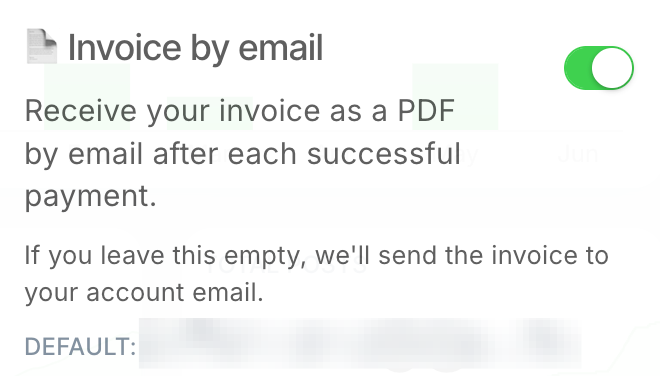
What does “Invoice by email” do?
The Invoice by email option sends your invoice as a PDF by email after each successful payment.
When it is enabled, Growblog will automatically email the invoice to the right address.
You can choose where the invoice goes:
- your account email
- a finance email
- an accounting email
- an invoices inbox
- your accountant’s email
- your client’s billing email
If you do not add a custom email, Growblog will use your account email.
For example:
Default: you@company.com
So you can enable invoice emails without adding a new address.
Where to enable invoice emails
You can enable this option from your Growblog dashboard.
Go to:
- Dashboard → Settings icon → Account
- The settings icon is in the top right corner of the dashboard.
- The Account tab is the first tab in settings.
- There you will find the Invoice by email option.
How to receive invoices by email
Follow these steps:
- Open your Growblog dashboard.
- Click the settings icon in the top right corner.
- Open the Account tab.
- Find Invoice by email.
- Turn on the switch button.
- Optional: add a custom email address for invoices.
After that, Growblog will send your invoice as a PDF by email after each successful payment.
If the custom email field is empty, the invoice will be sent to your account email.
You do not need to add a custom email
This is important.
You do not have to enter a separate invoice email.
The custom email field is only useful if you want invoices to go somewhere other than your account email.
If you leave it empty, Growblog will send invoices to your default account email.
For example:
Account email: alex@company.com
Custom invoice email: empty
Invoices will be sent to: alex@company.com
But you can also choose a different email.
For example:
Account email: alex@company.com
Custom invoice email: billing@company.com
Invoices will be sent to: billing@company.com
This gives you flexibility without making the setup more complicated.
Why receive invoices automatically by email?
Automatic invoice emails save time and make billing easier.
Instead of downloading invoices manually, Growblog sends them to you after each successful payment.
This is useful if you need invoices for accounting, taxes, internal reporting, or client records.
Main benefits
No manual downloads
You do not need to log in just to download an invoice.
Once invoice emails are enabled, Growblog sends the PDF automatically after payment.
Easier accounting
Your invoices arrive in the inbox where you need them.
If you manage your own accounting, you can use your account email.
If someone else manages billing, you can send invoices to them directly.
Better for teams
In many teams, the person using Growblog is not the person handling invoices.
For example, a content manager may use Growblog every day, while the finance team manages payments.
With a custom invoice email, both sides get what they need.
The user keeps access to Growblog.
The finance team receives the invoice.
Cleaner inboxes
You can decide where invoices should go.
If you want everything in your own inbox, leave the custom field empty.
If you want invoices separated from product emails, use a dedicated billing inbox.
Both options work.
Useful for agencies
Agencies often manage tools for clients.
With invoice emails, agencies can decide where invoices should be sent.
For example:
- to the agency owner
- to the agency finance team
- to the client’s accounting team
- to a shared invoices inbox
This avoids forwarding invoices manually after every payment.
Good custom invoice email examples
If you want to use a separate invoice email, a shared inbox usually works best.
Good examples include:
billing@yourdomain.cominvoices@yourdomain.comfinance@yourdomain.comaccounting@yourdomain.com
A shared inbox is often better than a personal email address.
For example, billing@company.com is usually better than john@company.com.
Why?
Because people can change roles, leave the company, or go on holiday.
A shared inbox keeps invoice delivery stable.
When should you add a custom invoice email?
You should add a custom invoice email if:
- someone else manages your invoices
- you have a finance or accounting team
- you work with an external accountant
- you manage Growblog for a client
- you want invoices in a shared inbox
- you want to separate invoices from product emails
You can leave the field empty if:
- you manage billing yourself
- you want invoices sent to your account email
- you do not need a separate billing inbox yet
Billing email vs account email
Your account email is used for your Growblog account.
Your invoice email is used for invoice delivery.
They can be the same.
They can also be different.
If the custom invoice email is empty, Growblog uses your account email.
This means there is always a default destination for invoices.
Best practices
Enable invoice emails if you want automatic PDF invoices after each payment.
Leave the custom email field empty if your account email is the right place for invoices.
Add a custom email only if invoices should go somewhere else.
Use a shared inbox when possible.
Make sure the inbox exists and is checked by the right person.
Avoid using crowded inboxes like support@yourdomain.com, where invoices can get lost.
Use filters or labels in your email app if you want to organize Growblog invoices automatically.
Frequently asked questions
Do I need to add an invoice email?
No.
Adding a custom invoice email is optional.
If you leave the field empty, Growblog sends invoices to your account email.
What happens when I enable “Invoice by email”?
Growblog sends your invoice as a PDF by email after each successful payment.
Where can I enable it?
Go to your Growblog dashboard, click the settings icon in the top right corner, and open the Account tab.
The Account tab is the first tab in settings.
Will this change my account email?
No.
Your account email stays the same.
The invoice email only controls where invoice PDFs are sent.
Can I use my account email for invoices?
Yes.
To use your account email, enable Invoice by email and leave the custom email field empty.
Growblog will use your default account email.
Can I send invoices to a different email?
Yes.
Add a custom invoice email if you want invoices to go somewhere else.
For example, you can use billing@company.com or accounting@company.com.
Can I send invoices to my accountant?
Yes.
You can add your accountant’s email as the custom invoice email.
You can also use a shared accounting inbox.
Can agencies use this for clients?
Yes.
Agencies can send invoices to their own finance team or to the client’s billing contact.
Can I change the invoice email later?
Yes.
You can update the custom invoice email anytime from the Account tab in your dashboard settings.
What if the payment fails?
Invoice emails are sent after successful payments.
If a payment is not successful, there is no successful payment invoice to send.
Keep invoice delivery simple
Invoice by email is a small setting that can save time every month.
You can receive each invoice automatically as a PDF after payment.
You can keep using your account email.
Or you can add a different email for finance, accounting, or client billing.
To enable it, open your Growblog dashboard, click the settings icon in the top right corner, go to the Account tab, and turn on Invoice by email.
If you leave the email field empty, Growblog will send invoices to your account email by default.
Grow your Ghost blog faster 🚀
Start your free trial now and explore all Growblog features for free. No credit card is required.